We know that as a therapist, your time is best spent with your clients—not buried in paperwork. That’s why we’re so excited about our AI-Assisted Progress Notes. This feature allows you to transform simple session highlights into clinically robust documentation in seconds. In this guide, we will walk through the Text-to-Note capture method, helping you utilize AI-enhanced editing to keep your focus where it matters most.
When to Use Text-to-Note
The Text-to-Note method is ideal when you have specific bullet points or shorthand observations from a session that need to be transformed into a formal clinical narrative. Use this feature when:
You have handwritten or typed shorthand notes from a session and need them synthesized into a structured format like SOAP or BIRP.
You are working with specific client populations, such as children, where you may have recorded observations in simpler language that now requires professional clinical terminology.
You want to quickly update a client's progress toward specific goals and interventions without re-typing standard clinical phrases.
What to Include in Your Draft
To get the most out of the AI generator, your initial draft should include key "raw" data from the session:
Client Statements: Direct or paraphrased feelings expressed by the client, such as feeling sad, tired, or hopeless.
Session Highlights: Specific topics discussed, such as difficulties at school or things that make the client feel better (e.g., music or pets).
Interventions Used: Brief mentions of the techniques you applied, such as practicing cognitive reframing or making a plan for the week.
The "Next Step": A simple note on what you plan to check or address in the following session.
Common Mistakes to Avoid
Over-reliance on Defaults: Always review the AI-generated sections for Goals, Interventions, and Response to ensure they accurately reflect the specific session rather than generic clinical goals.
Skipping the Smart Edit: Forgetting to use the Smart Edit features to check formatting or adding necessary headings can result in a note that is less scannable for auditors.
Neglecting the Original Draft: Ensure your initial text entry is clear; while the AI is powerful, providing vague input may result in a generated note that lacks the specific "clinical" nuance of your session.
Step-by-Step Guide
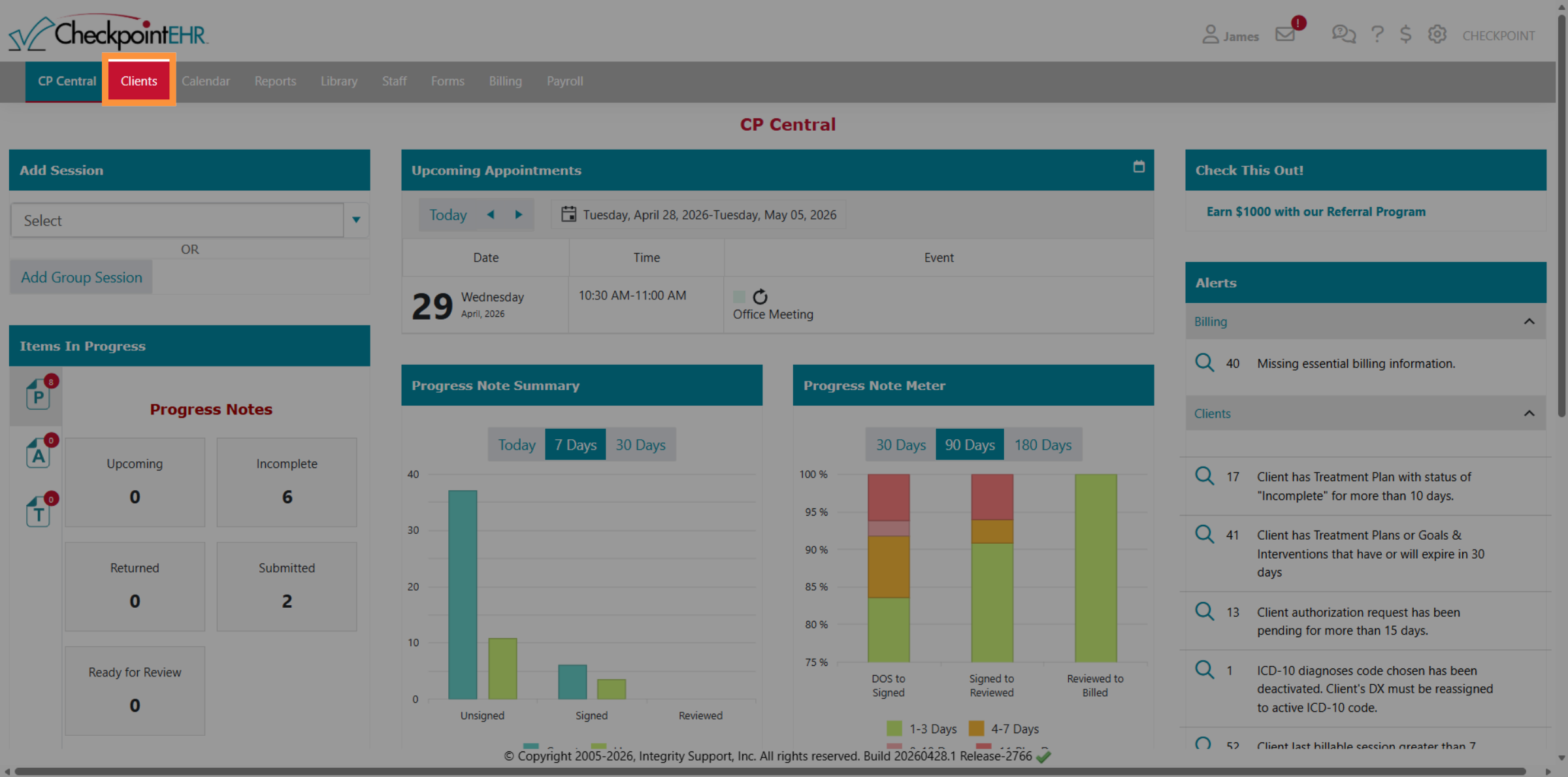
1. Access Clients Section
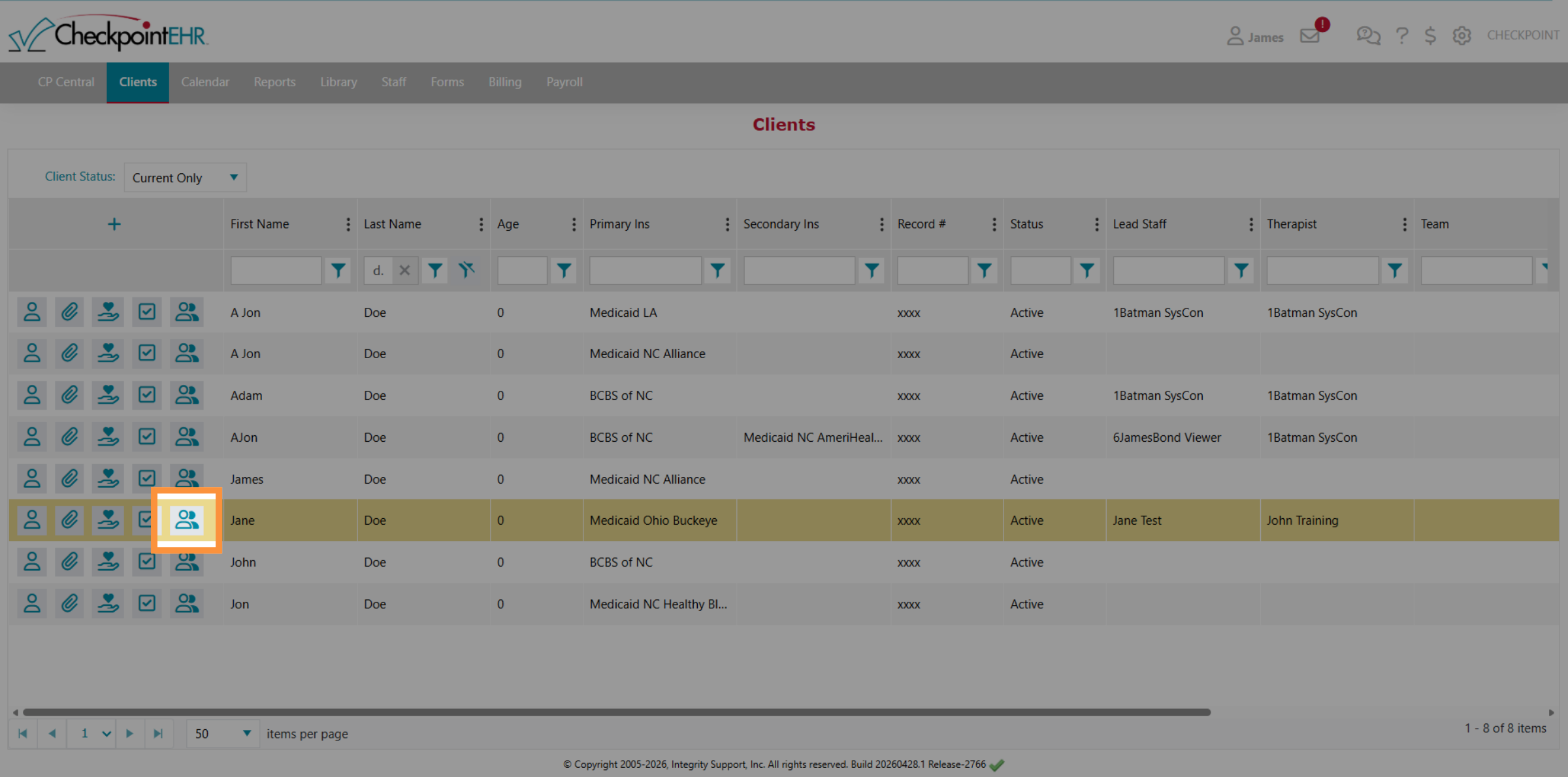
2. Select Client From List
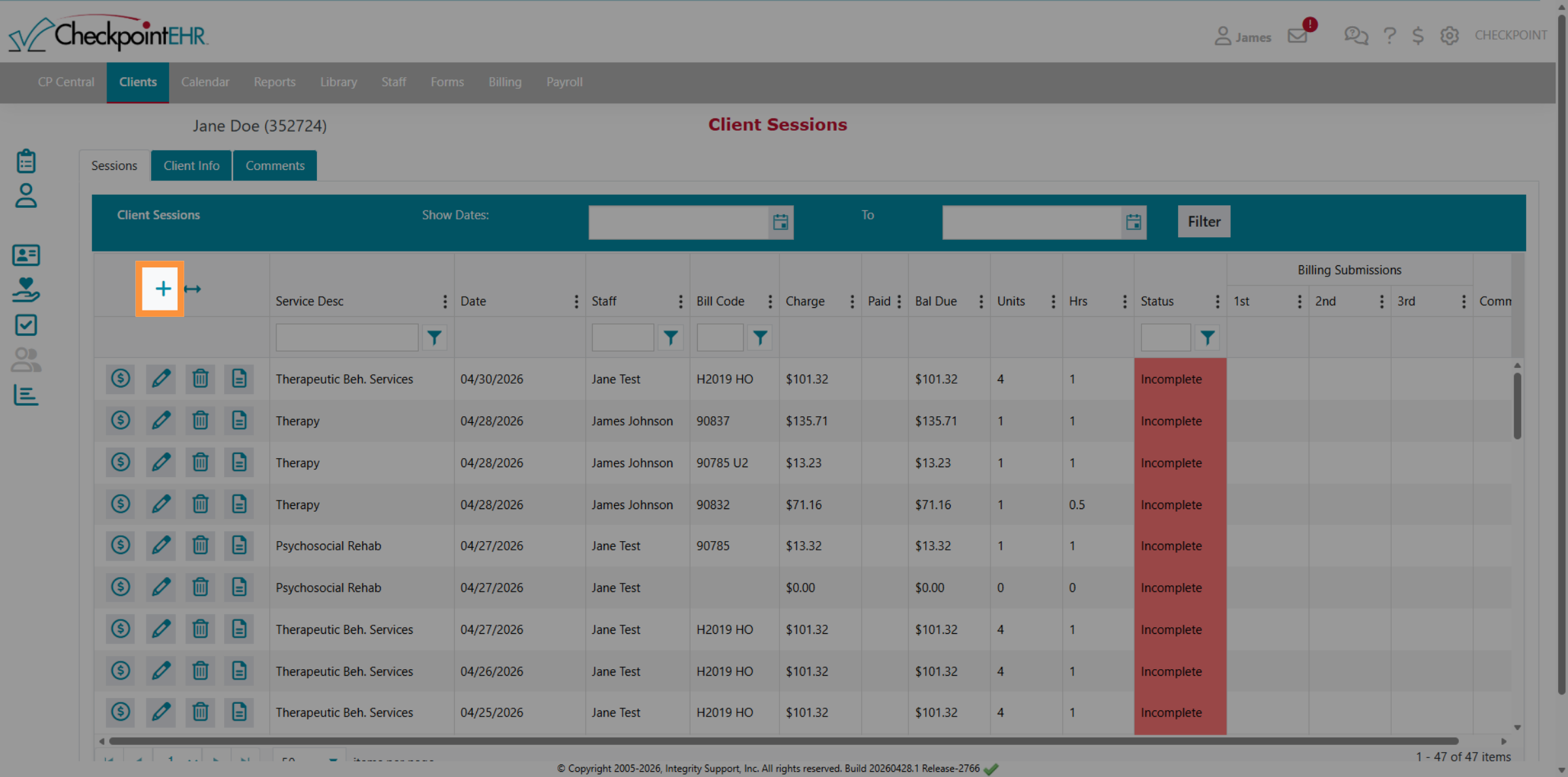
3. Open Client Sessions
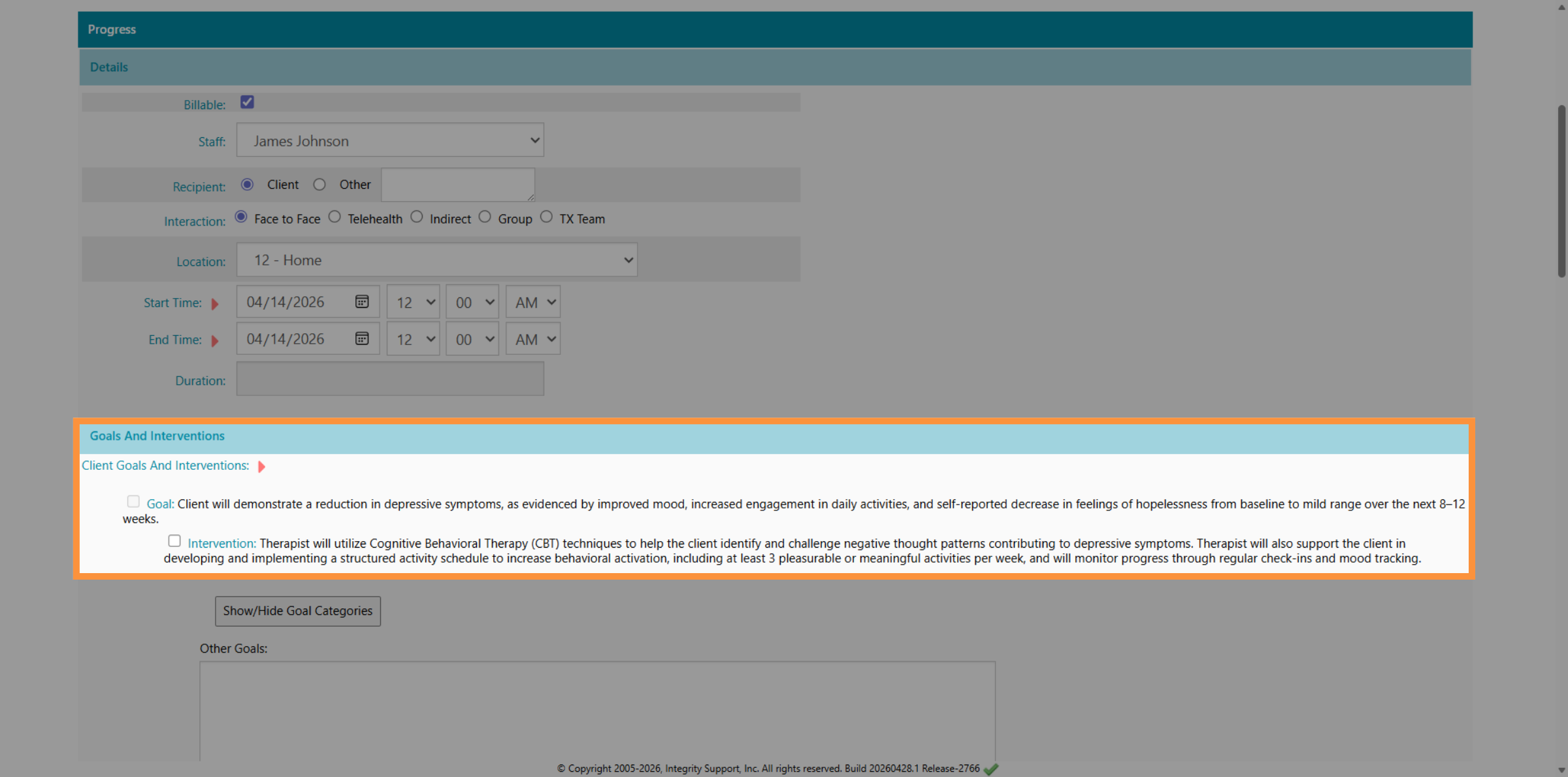
4. Enter Goals & Intervention Details
5. Activate AI Enhanced Editor
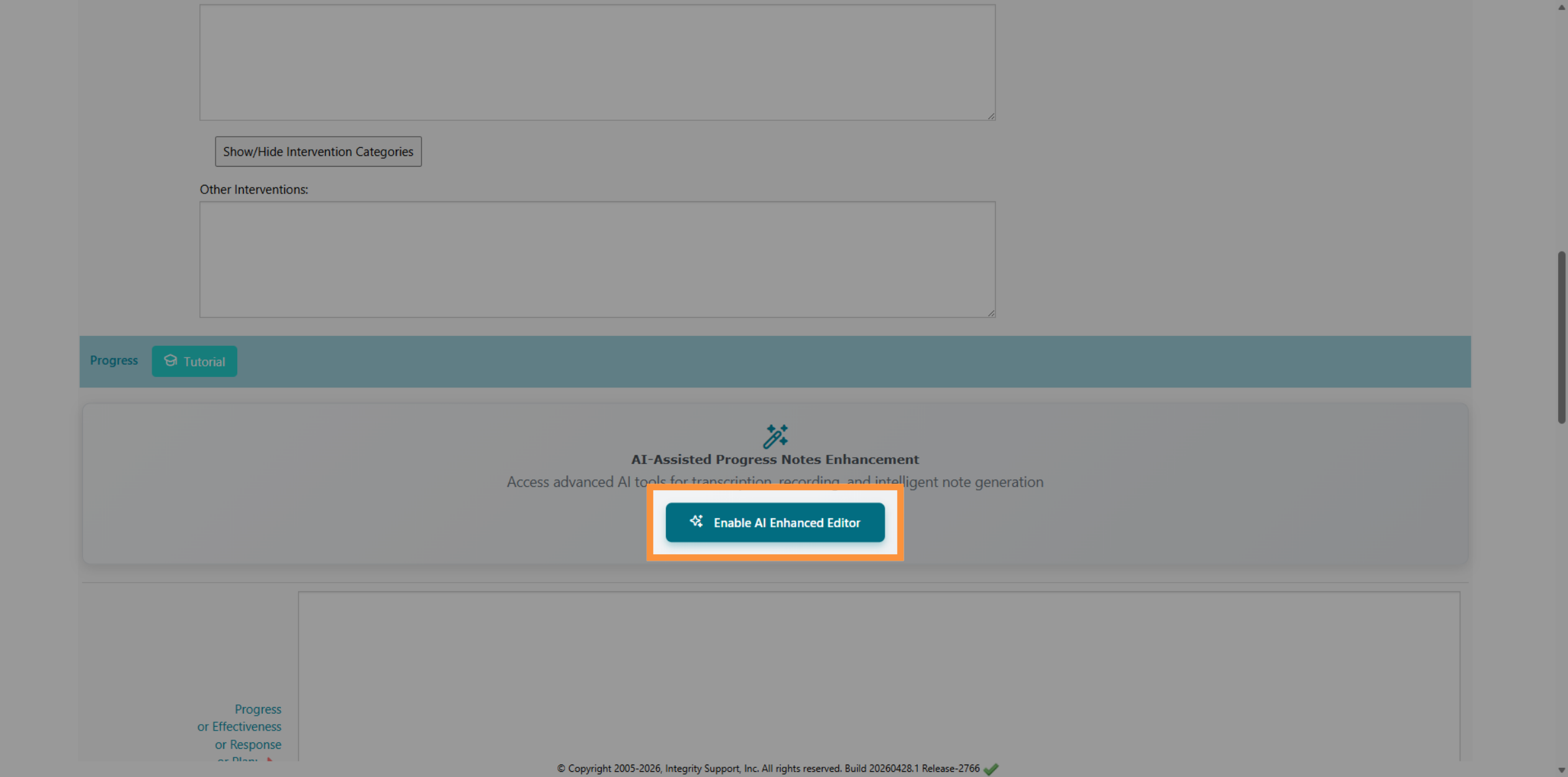
6. Add Detailed Session Notes
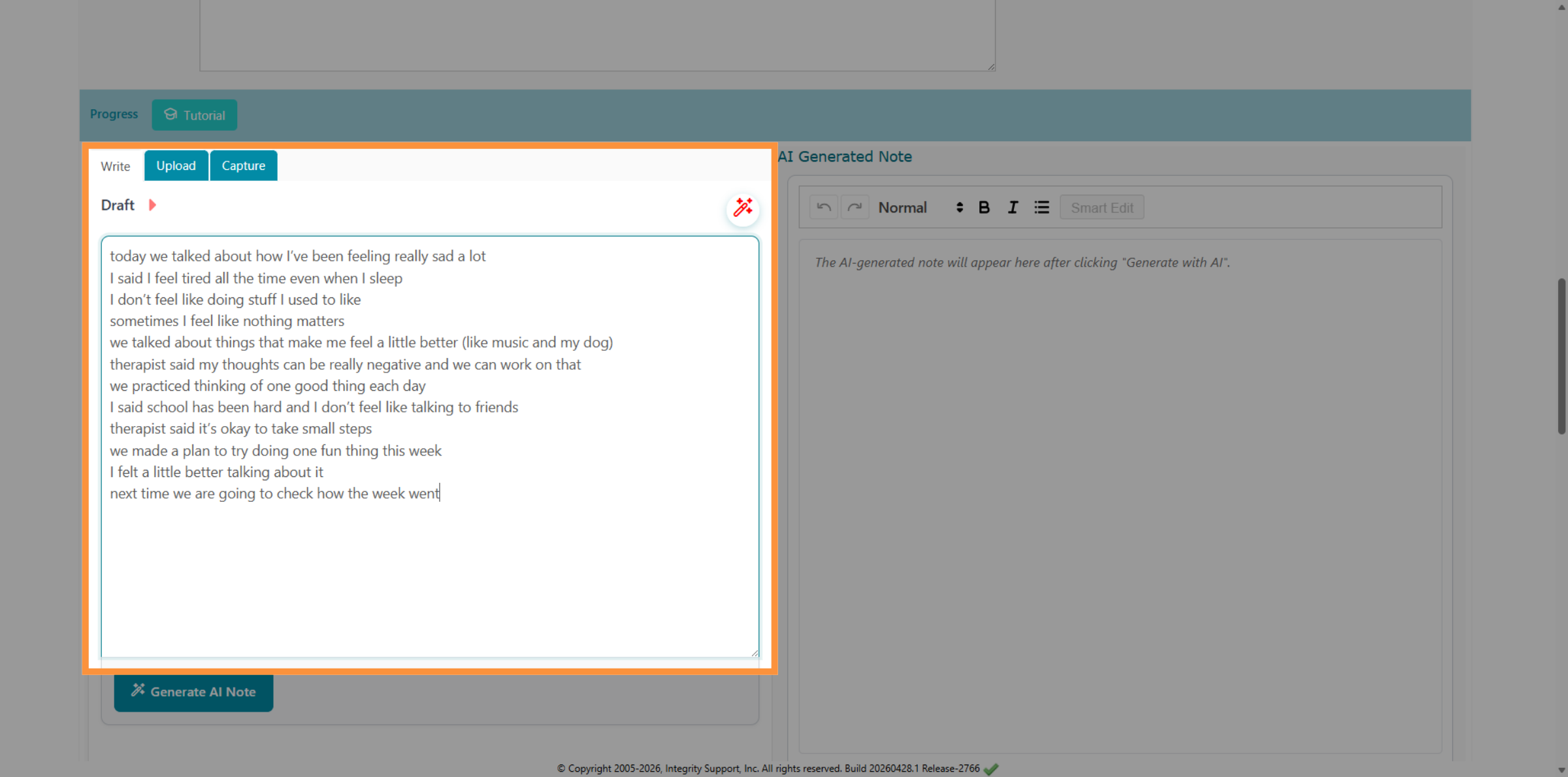
7. Generate AI Note
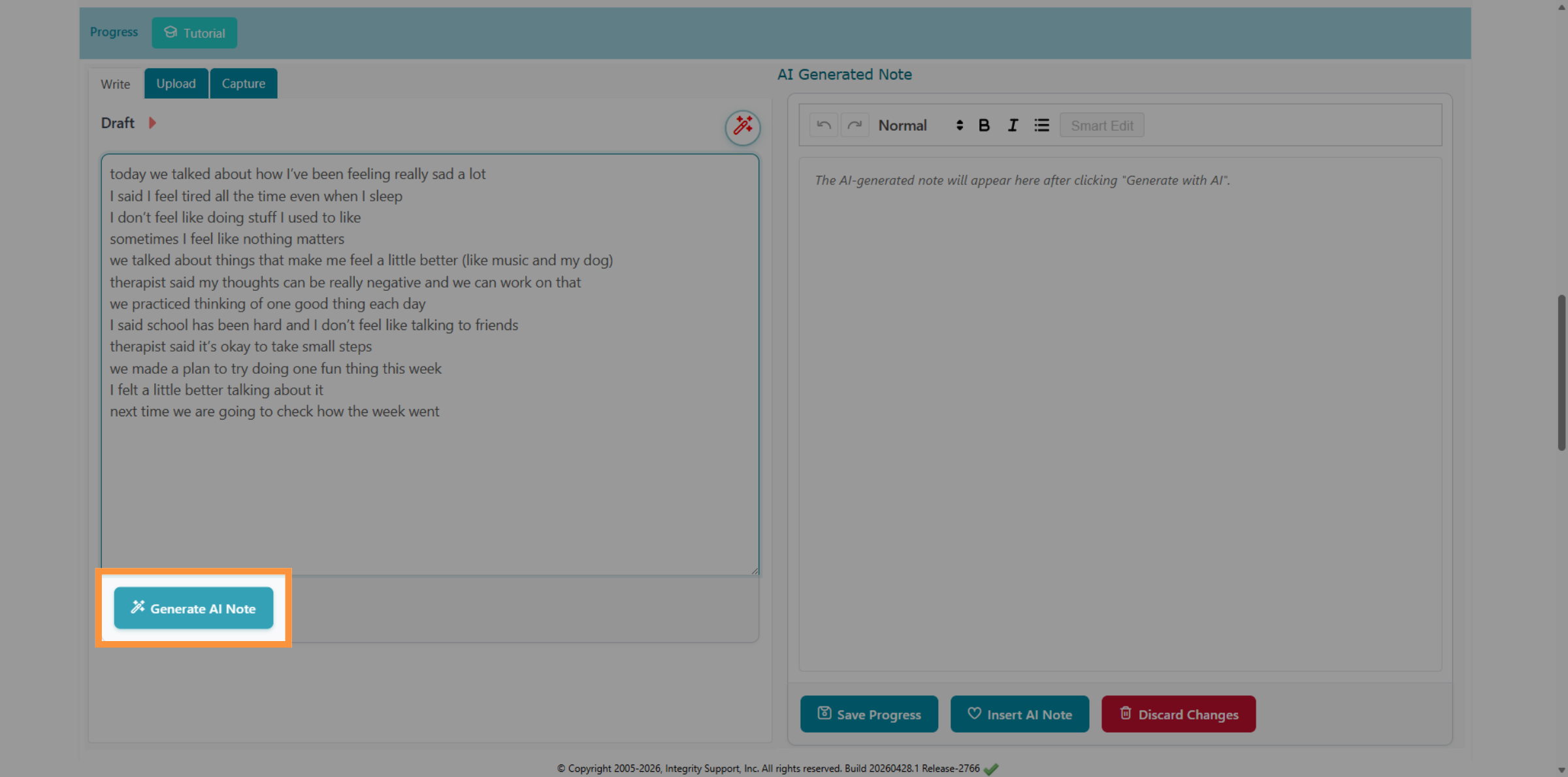
8. Select Formatting Option
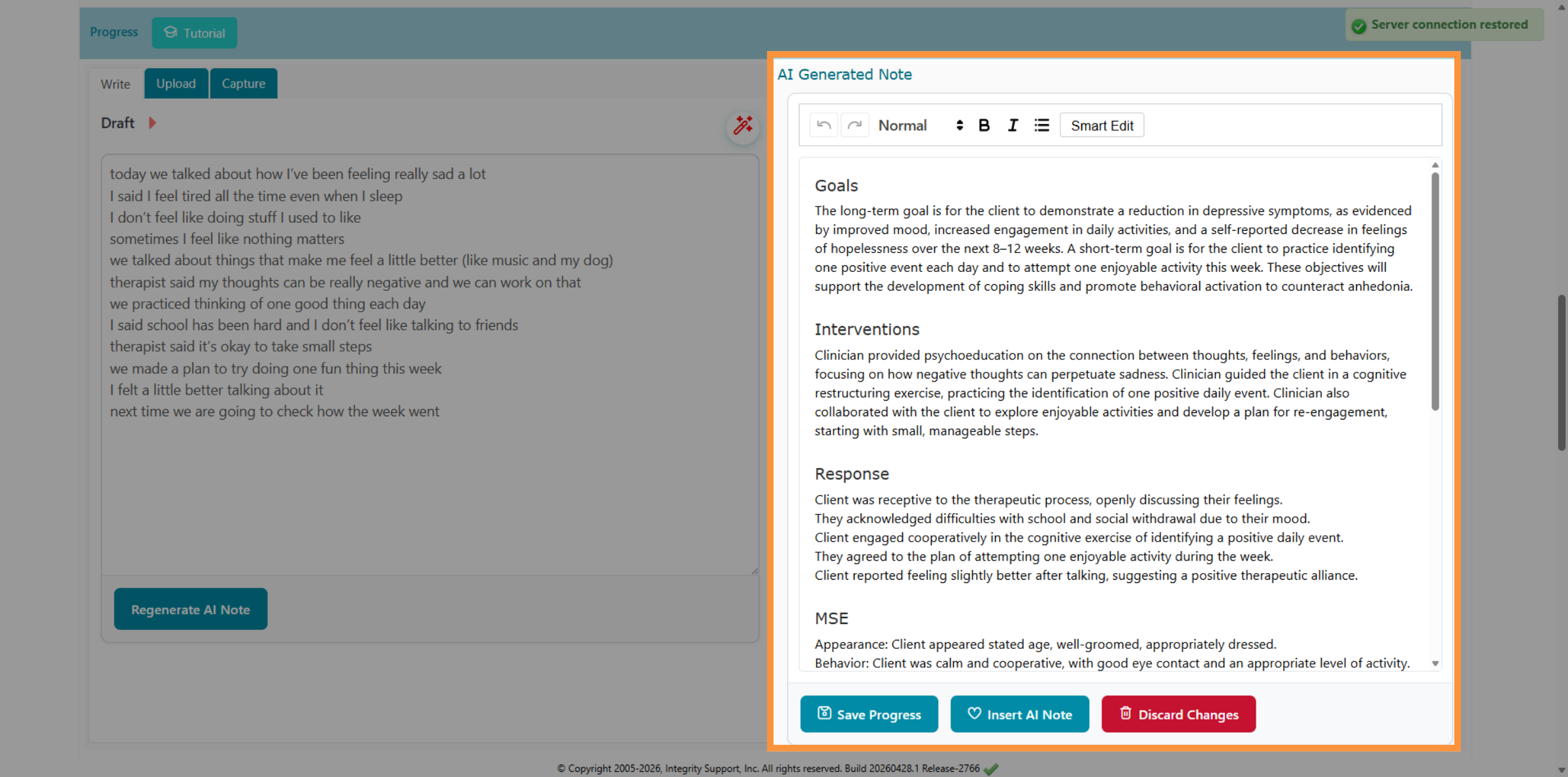
9. Insert AI Generated Note
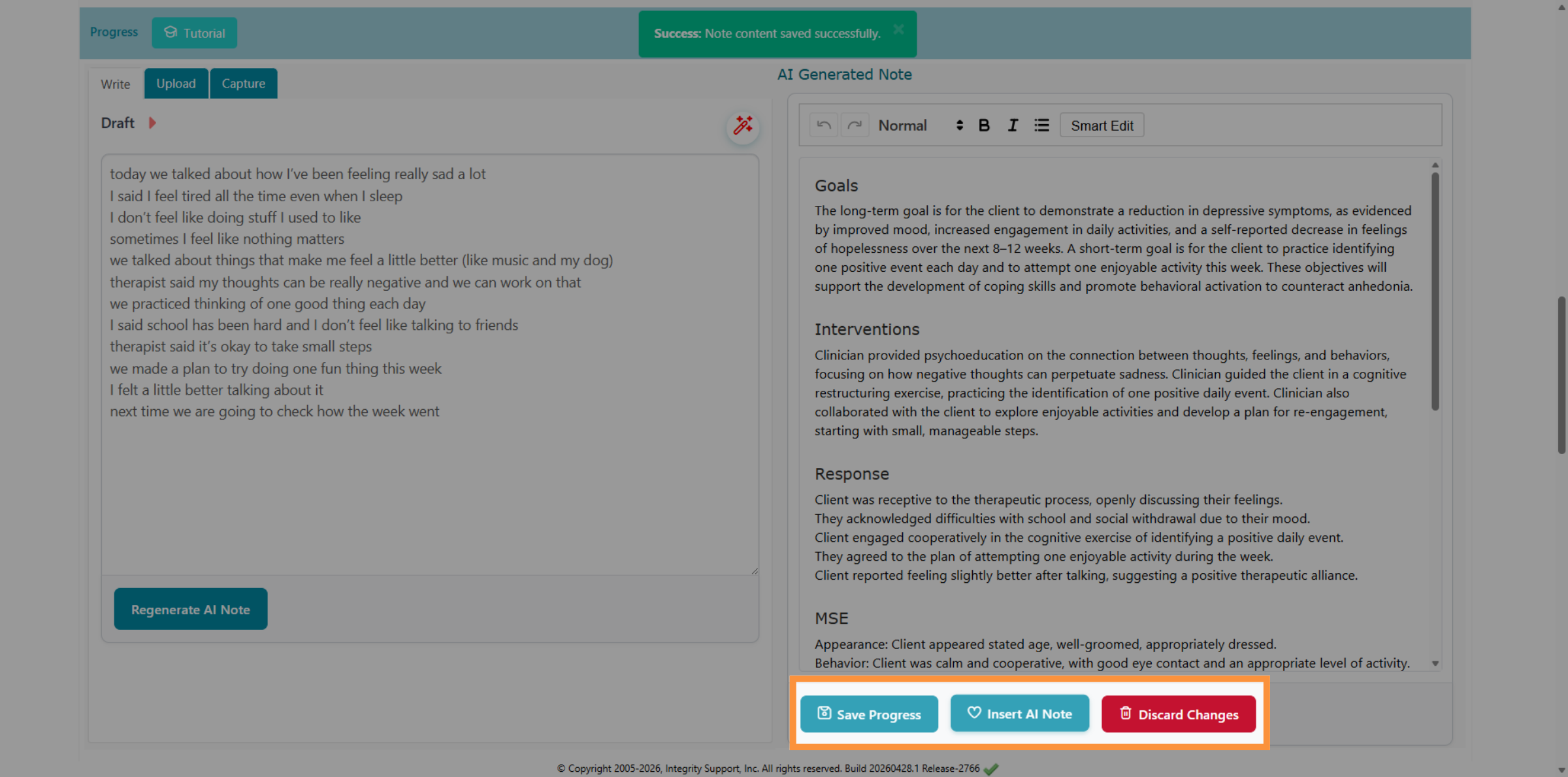
10. Confirm AI Note Insertion
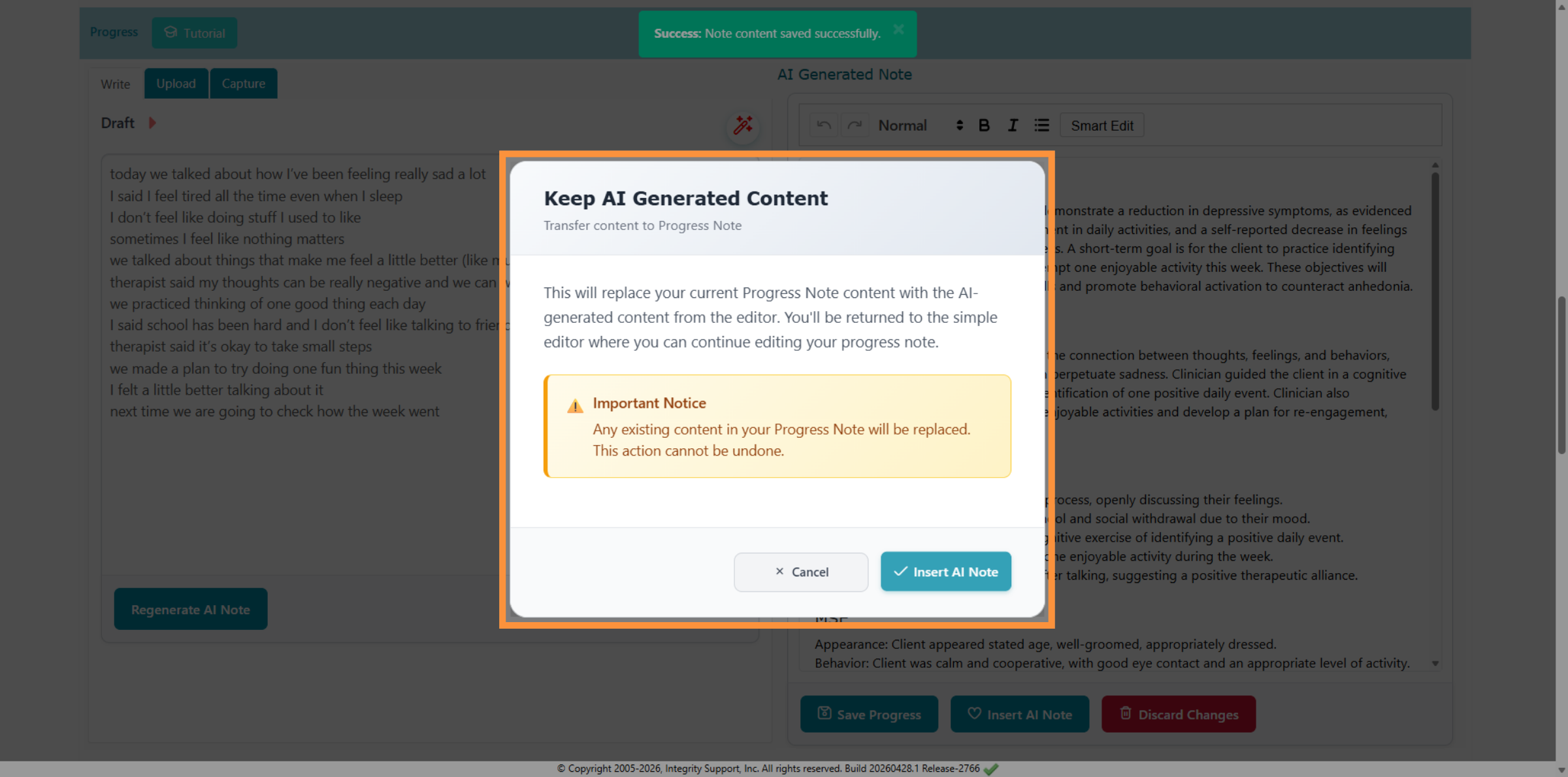
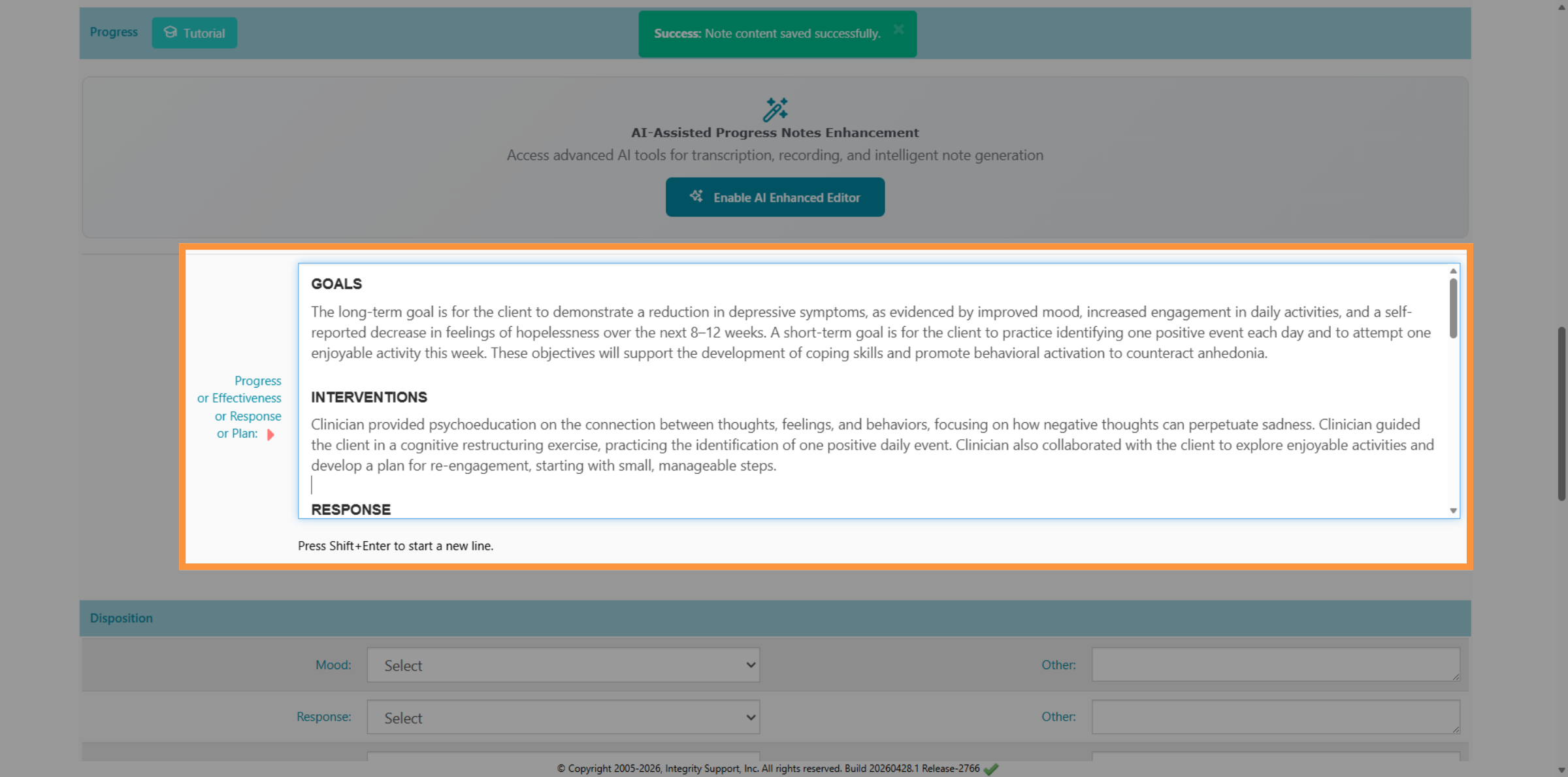
11. Complete Progress Note Editing
Why Use Text-to-Note?
This feature is a gamechanger for clinical efficiency. We know that as a therapist, your time is best spent with your clients—not buried in paperwork. By simply jotting down shorthand highlights or raw session observations, the AI handles the heavy lifting of clinical synthesis. This allows the system to generate structured, professionally worded drafts that include goals, interventions, and client responses. Using this method ensures your notes remain comprehensive and clinically accurate without the manual burden of starting from a blank page every time.
Comments
0 comments
Please sign in to leave a comment.