We know that as a therapist, your time is best spent with your clients—not buried in paperwork. That’s why we’re so excited about our AI-Assisted Progress Notes. Today, I’m going to show you how to use the Dictation capture method so you can keep your focus where it matters most. This feature allows you to speak your session highlights naturally and watch as our AI transforms them into professional, clinically structured progress notes.
Best Practices for Dictation
To ensure the highest quality notes, follow these clinical documentation standards:
Maintain Privacy: Always ensure you are in a secure, private location before beginning dictation to protect HIPAA-sensitive information.
Include Client Response: Explicitly dictate how the client responded to interventions (e.g., "Client expressed relief" or "Client was resistant to the exercise").
Summarize the "Why": Don't just list activities; dictate the clinical intent behind your interventions to give the AI context.
Speaking Tips
Speak Naturally: You don't need to speak like a computer. The AI is designed to understand natural conversational flow and clinical shorthand.
Enunciate Key Terms: While the AI is robust, clearly pronouncing specific diagnostic terms or medication names helps ensure accuracy.
Punctuation is Optional: You do not need to say "period" or "comma"—our AI intelligently places punctuation based on your natural pauses and sentence structure.
Mobile Considerations
Use the Mobile App: Dictation is even more convenient on your mobile device, allowing you to finish notes immediately after a session while the details are fresh.
Check Your Connection: For the best experience, ensure you have a stable Wi-Fi or cellular data connection to allow the AI to process your audio in real-time.
Step-by-Step Guide
1. Access Clients Section
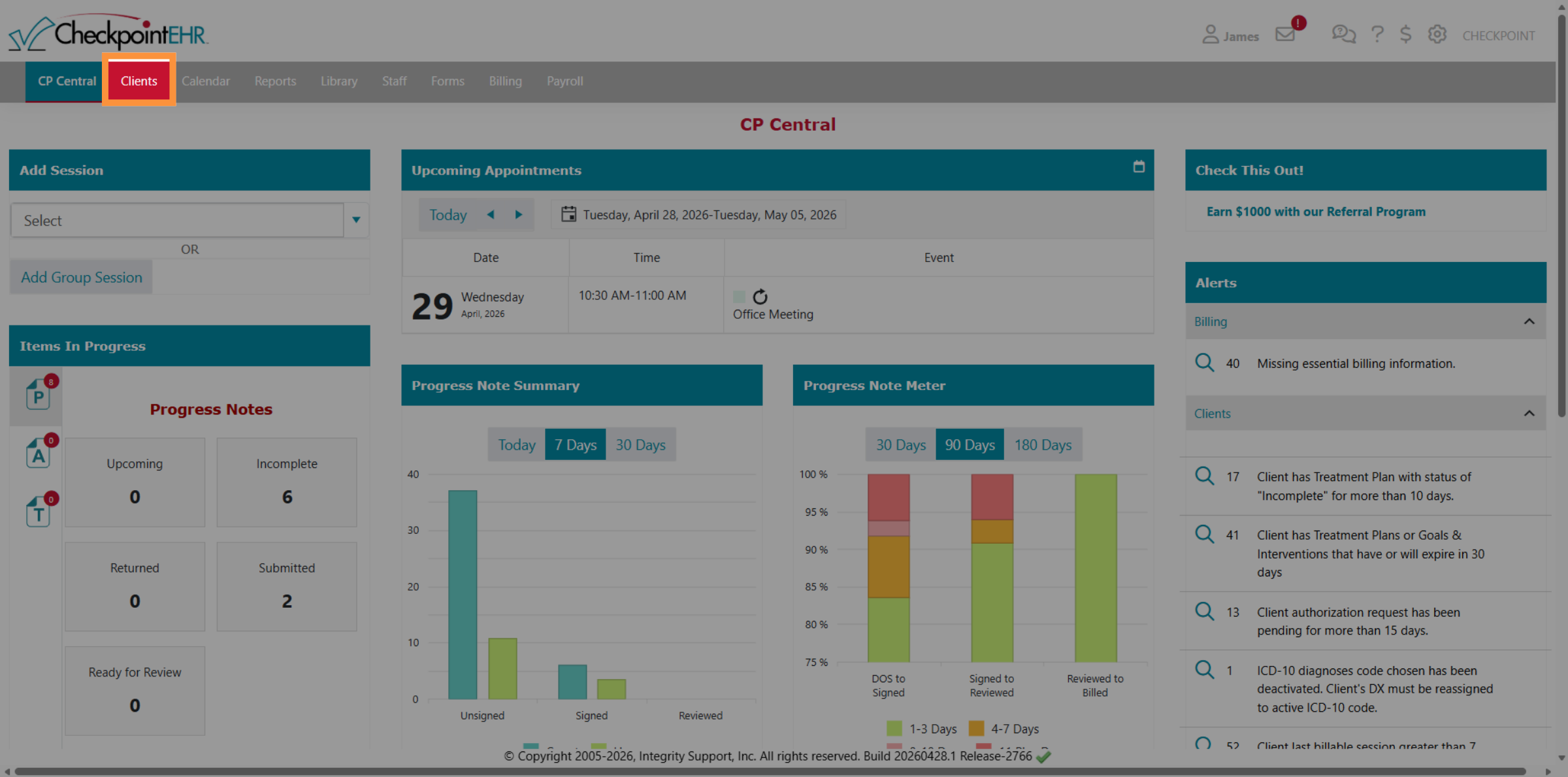
2. Select Client From List
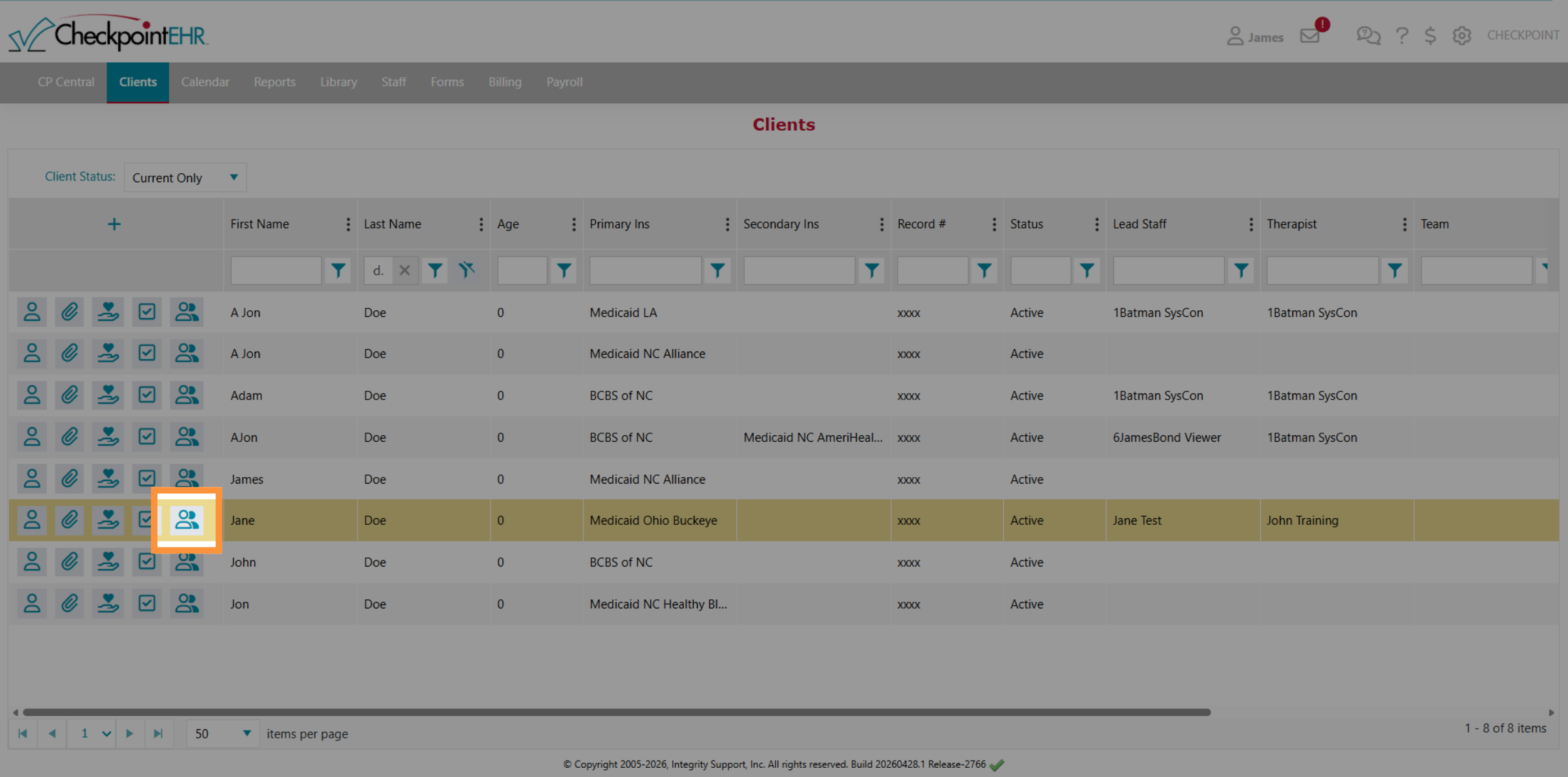
3. Open Client Sessions
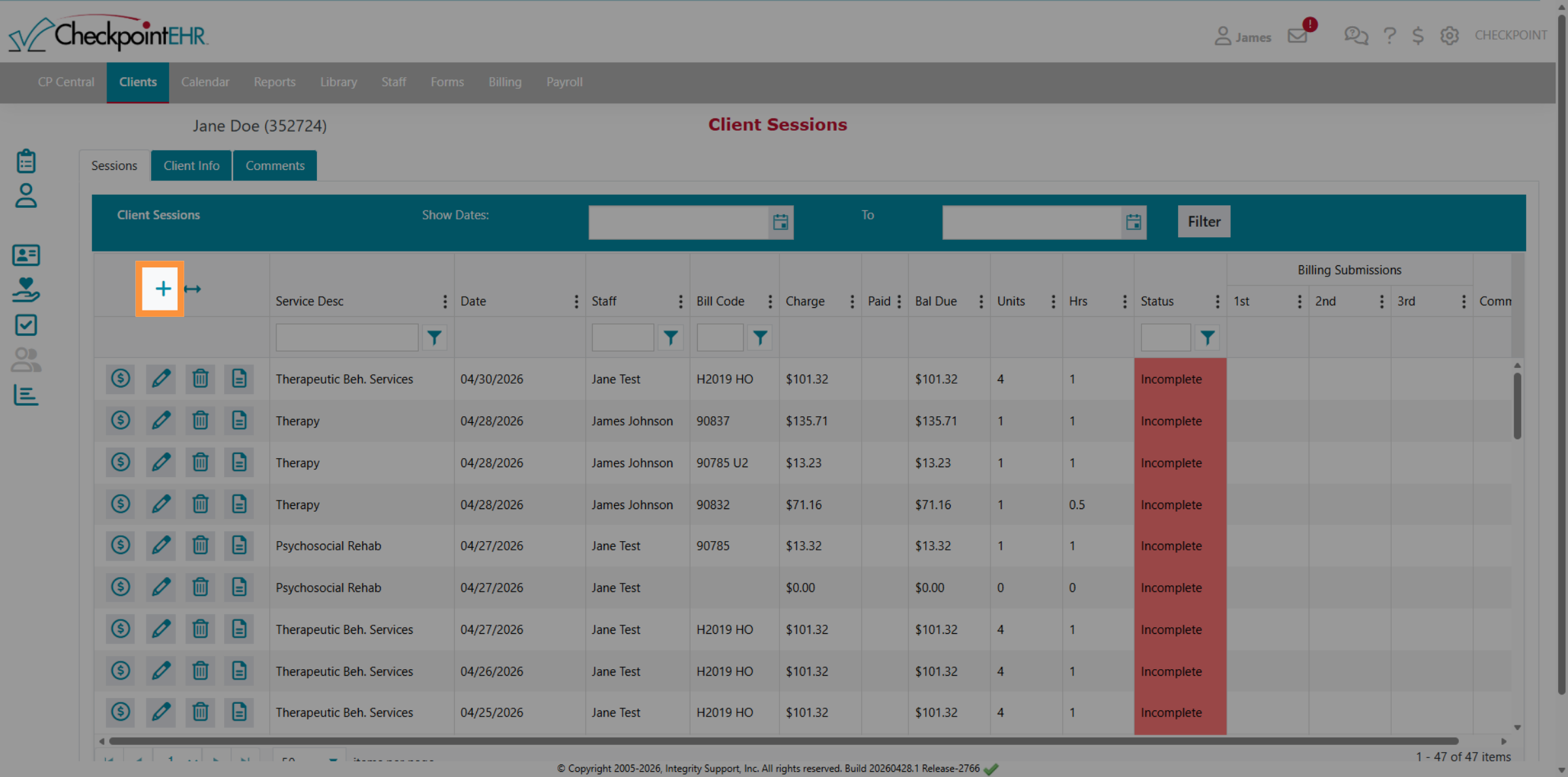
4. Enter Goals & Intervention Details
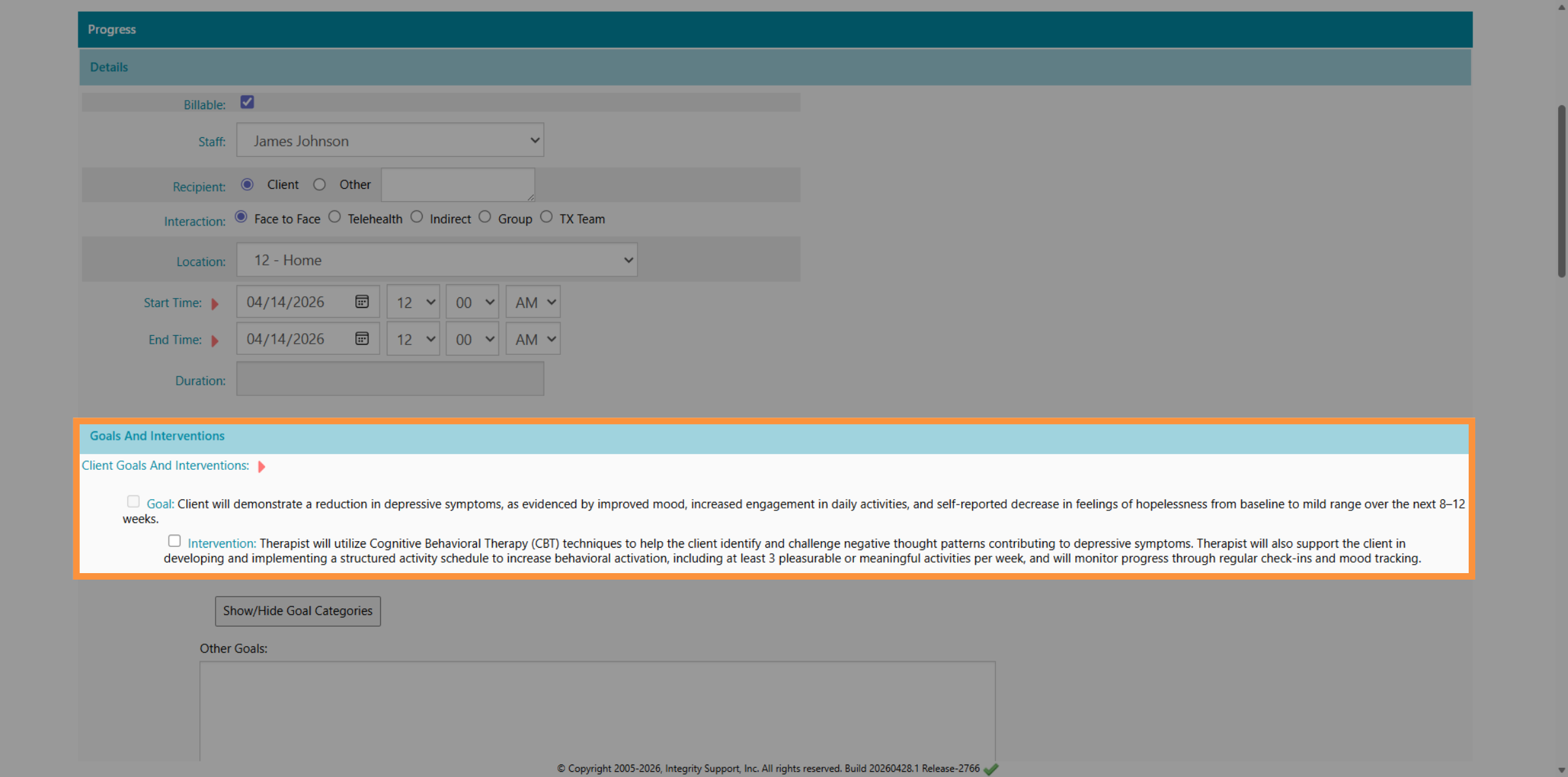
5. Activate AI Enhanced Editor
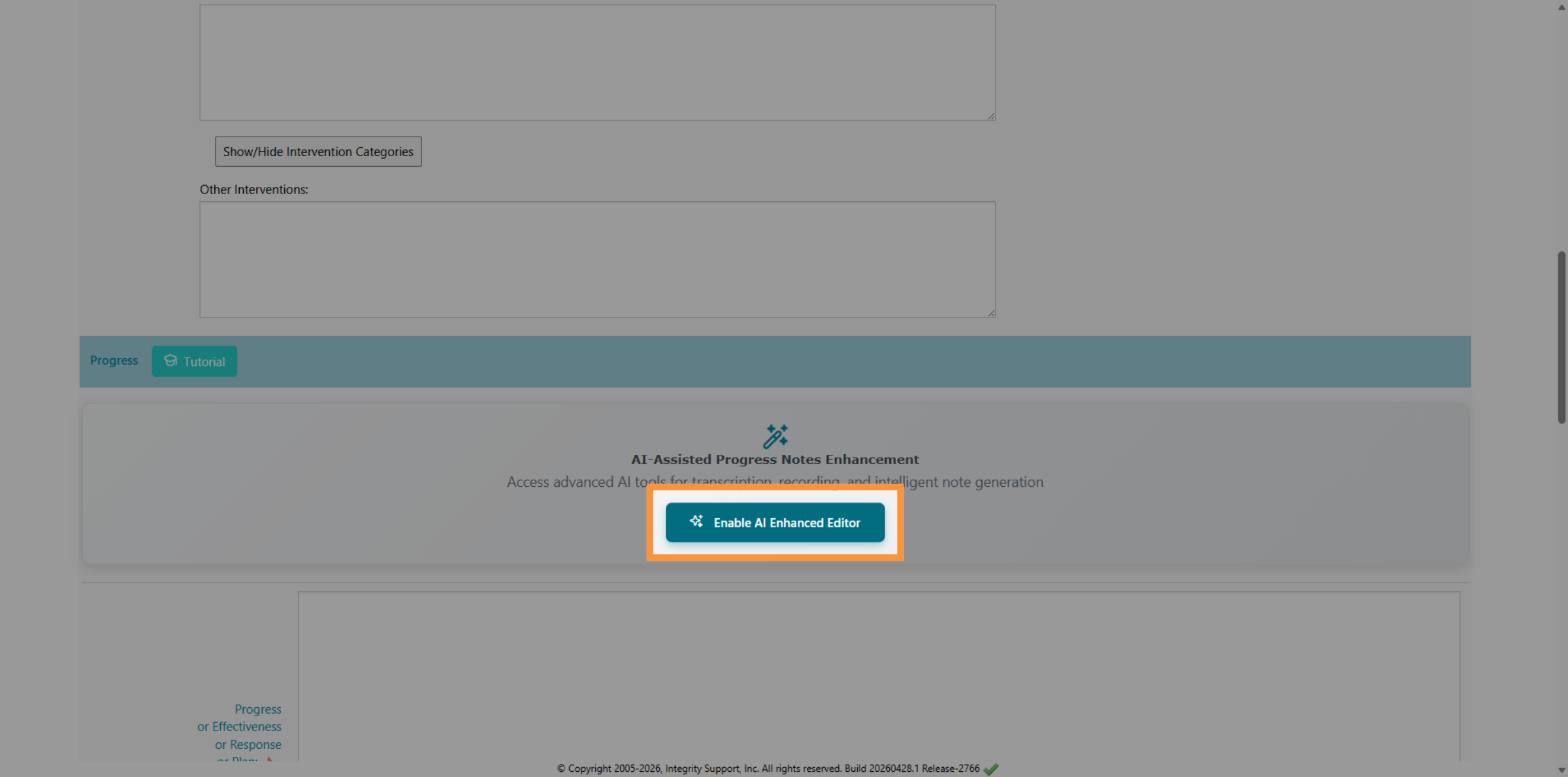
6. Add Detailed Session Notes
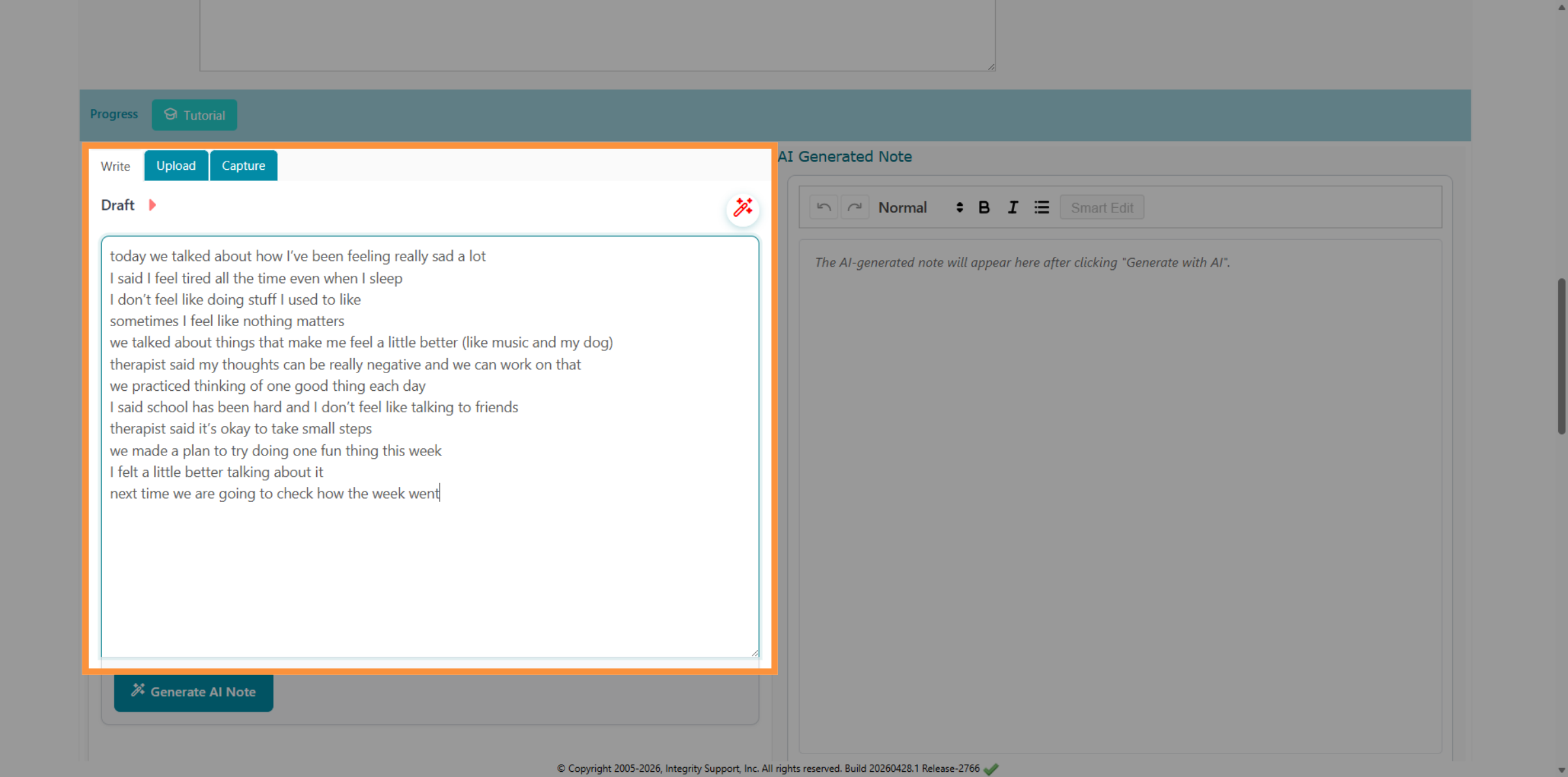
7. Generate AI Note
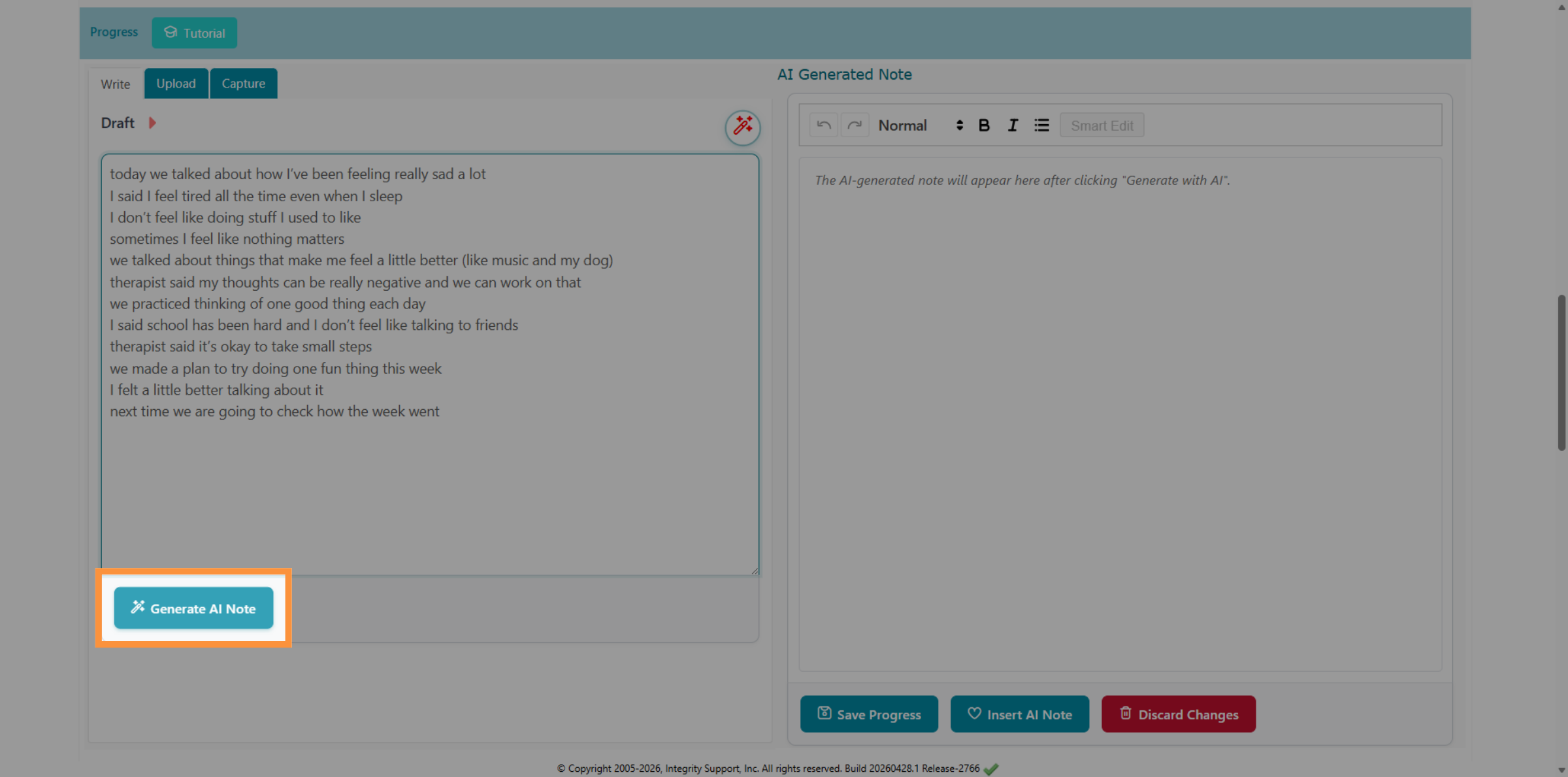
8. Select Formatting Option
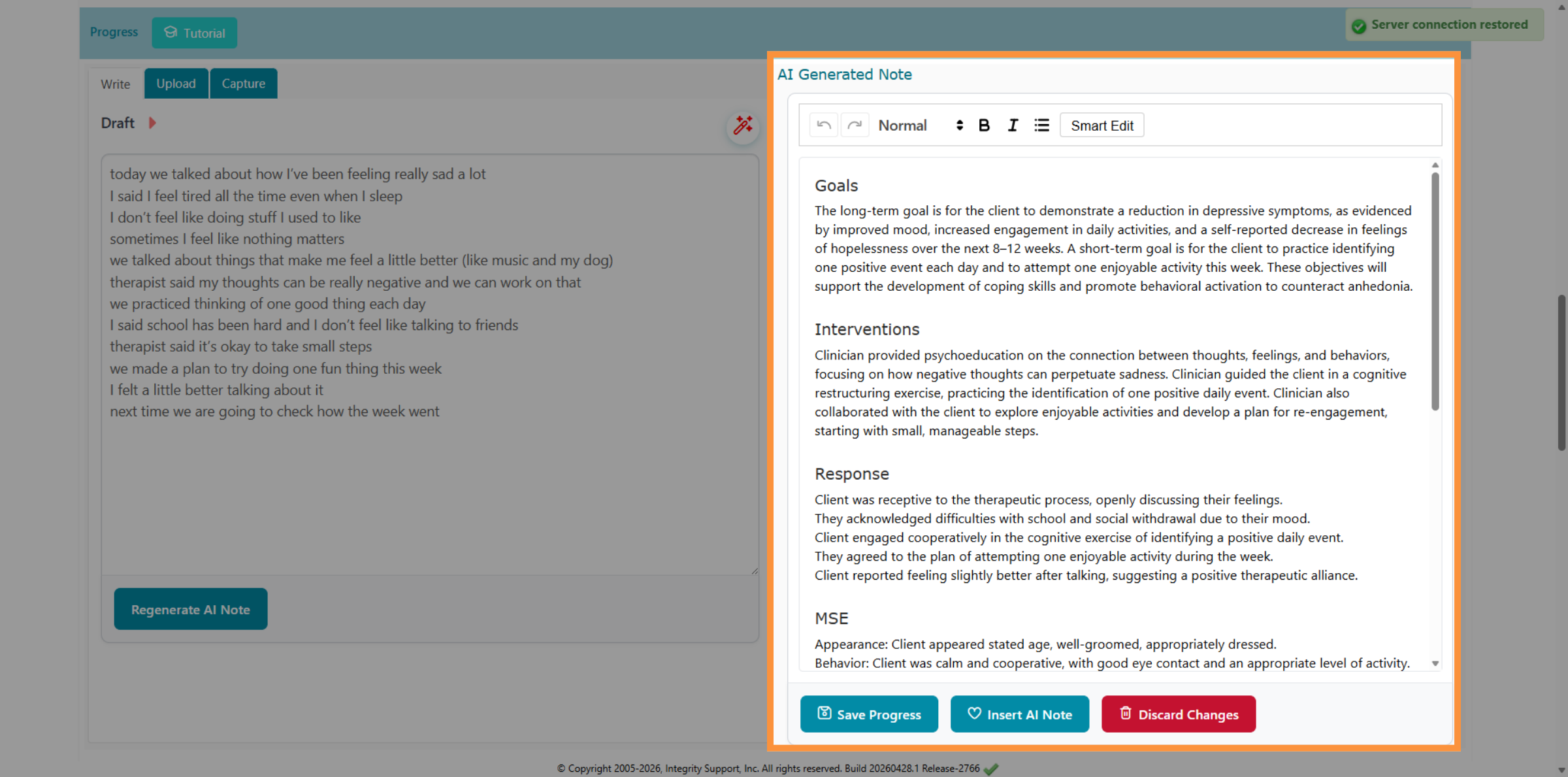
9. Insert AI Generated Note
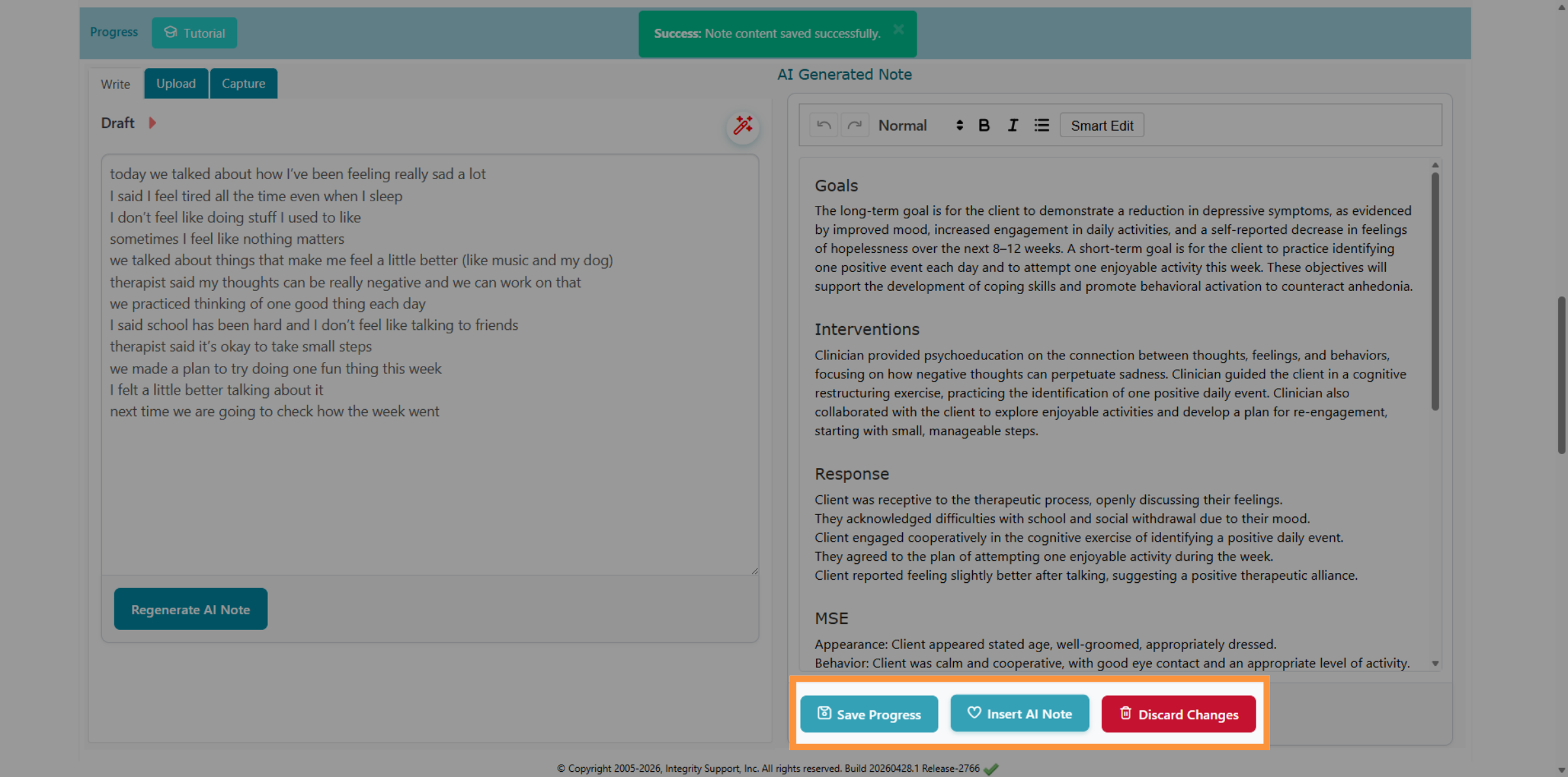
10. Confirm AI Note Insertion
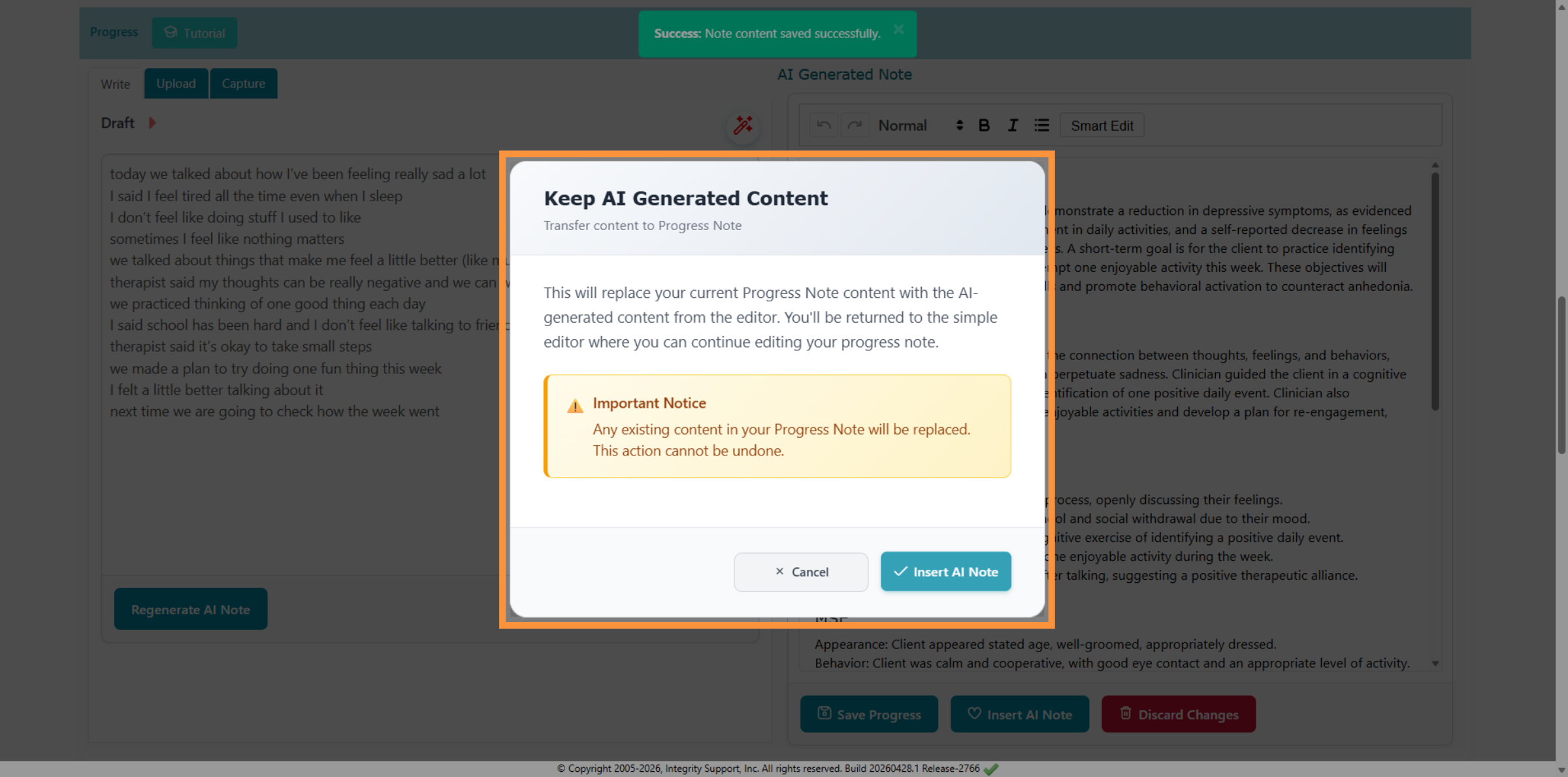
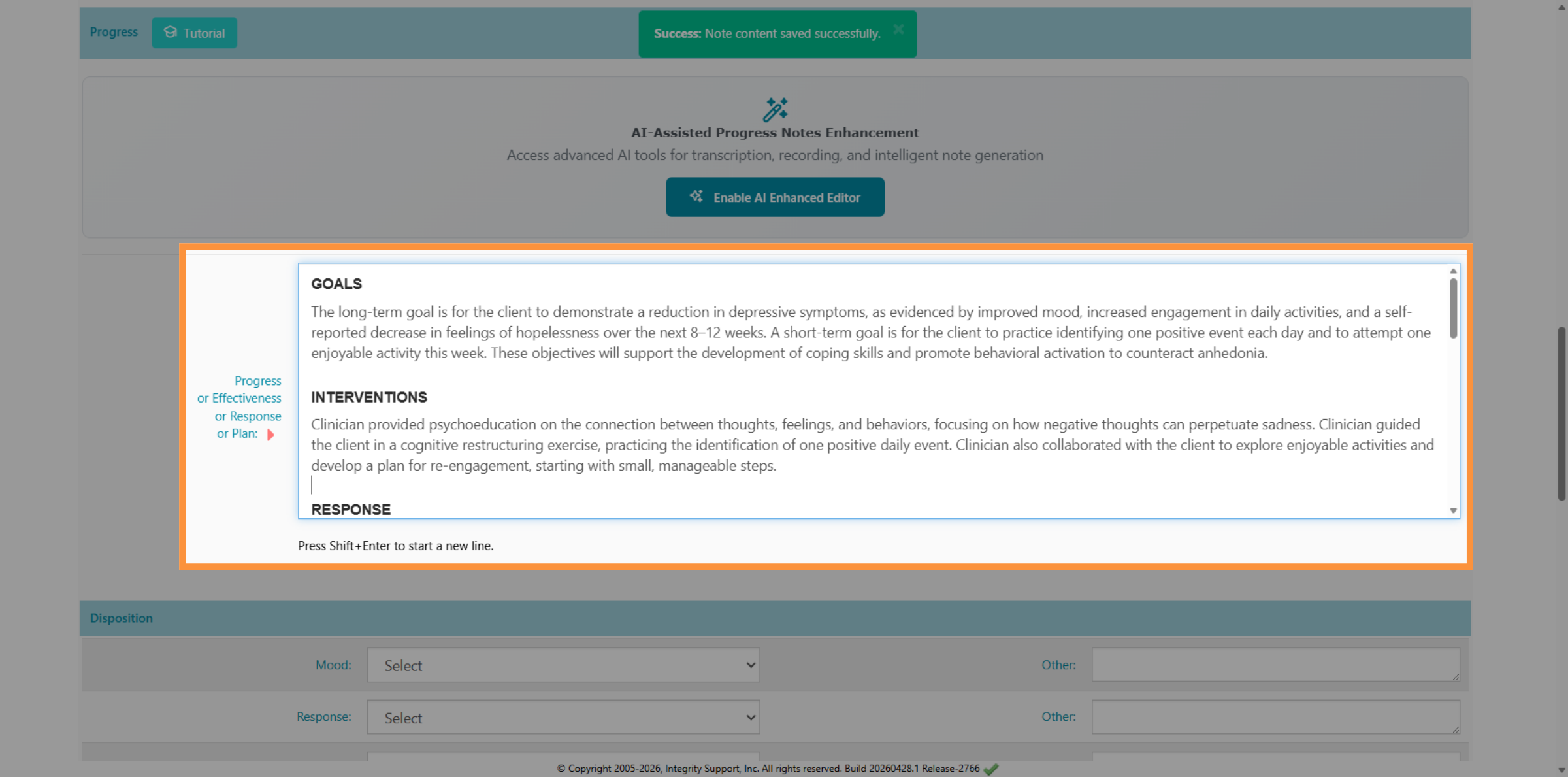
11. Complete Progress Note Editing
Why Use AI Dictation?
Using the dictation feature significantly reduces the "documentation lag" that often follows a long day of sessions. Instead of manual data entry, you can quickly verbalize the encounter, allowing the AI to handle the heavy lifting of clinical synthesis and formatting. This ensures your notes are comprehensive, professionally worded, and completed in a fraction of the time, allowing you to get back to what you do best: helping your clients.
Comments
0 comments
Please sign in to leave a comment.